← Back to Tutorials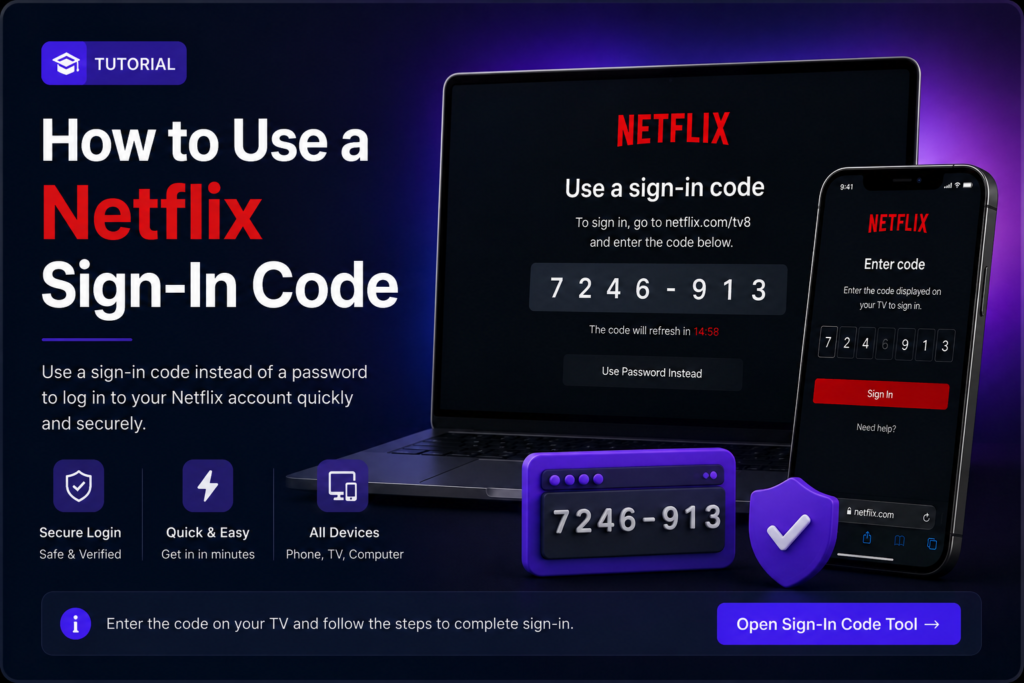
How to Use a Netflix Sign-In Code
Sometimes Netflix displays a sign-in code on the screen instead of asking you to type the account email and password directly. When that happens, use the Premiumify Sign-In Code tool below.
How to sign in with the code
- Open Netflix on your device.
- Choose the sign-in option until Netflix displays a sign-in code.
- Keep the code visible and copy it exactly.
- Open the Premiumify Sign-In Code tool using the button below.
- Enter the code and follow the instructions shown by the tool.
- Return to Netflix. The device should continue the sign-in process.
Netflix Sign-In Code Tool
Use this when Netflix displays a code for signing in.
Common problems
- Code expired: generate a new code on Netflix and try again.
- Invalid code: check every letter and number before submitting.
- Netflix does not continue: wait a few seconds, then reopen Netflix on the device.
- A new code appears: always use the newest code.
FAQ
Do I need to enter the Netflix password?
No. If Netflix is showing a sign-in code, follow the code-based flow shown on the device.
Can the same code be used twice?
Use each code only for the sign-in session where Netflix displayed it. If Netflix gives you another code, use the new one.
What should I do if the code keeps expiring?
Generate a fresh code and enter it immediately in the Sign-In Code tool.