Premiumify
Home Blogs Tutorials Category Reviews Support About FAQ Contact
Premiumify

Tutoriel Catégorie: Netflix

  • Comment résoudre le problème de foyer Netflix

    Comment résoudre le problème de foyer Netflix

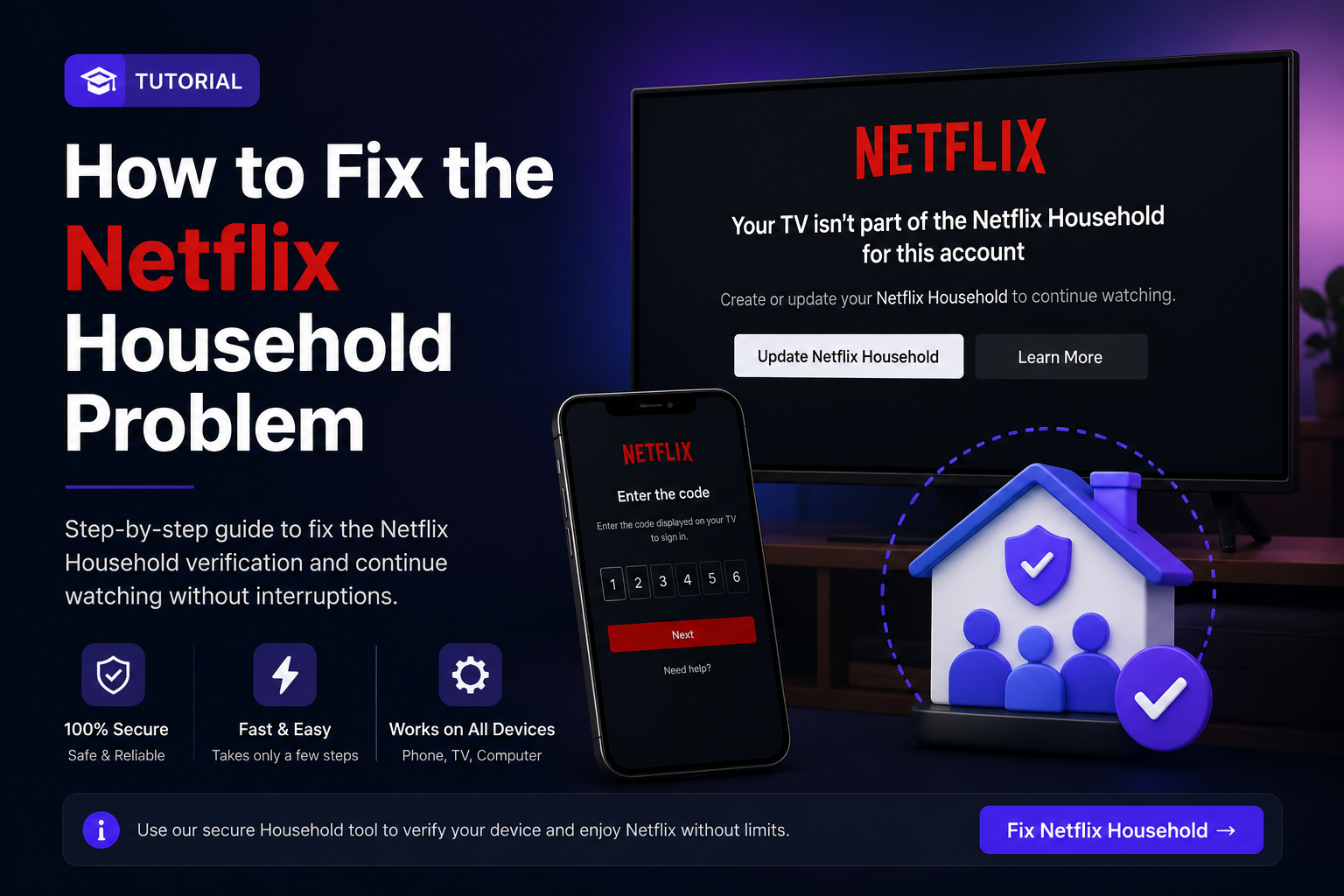
    If Netflix shows a message saying that your device is not part of the Foyer Netflix, you may need to complete a verification step before you can continue watching.

    When should you use this tutorial?

    • You see a Foyer Netflix warning on your phone or computer.
    • Your TV asks you to confirm or verify the household.
    • Netflix gives you a code or verification flow and you need help completing it.

    On phone or computer

    1. Ouvert Netflix and follow the message shown on your screen.
    2. If Netflix gives you a verification code, copy it carefully.
    3. Ouvert the Premiumify Household tool using the button below.
    4. Enter the code exactly as Netflix shows it, then follow the instructions on the tool.
    5. Return to Netflix and continue the verification process.

    Foyer Netflix Tool
    Use this when Netflix asks you to verify the household.

    🏠 Résoudre le problème de foyer Netflix

    On a TV

    1. Keep the Foyer Netflix message open on the TV.
    2. Follow the QR code, link, or verification instructions shown by Netflix.
    3. If the flow provides a code, use the Household tool above and complete the steps.
    4. When verification is complete, reopen or refresh Netflix on the TV.

    If it still does not work

    • Make sure you entered the code without extra spaces.
    • If Netflix generates a new code, use the newest one.
    • Do not reuse an expired verification code.
    • Fermer and reopen Netflix after verification.

    FAQ

    Why does Netflix show a Household message?

    Netflix may ask for household verification when a device, network, or location needs to be confirmed.

    Can I use an old verification code?

    No. If Netflix gives you a new code, always use the latest code shown on the screen.

    Does this change my Netflix password?

    No. This tutorial is only for completing the household verification flow shown by Netflix.
  • Comment utiliser un code de connexion Netflix

    Comment utiliser un code de connexion Netflix

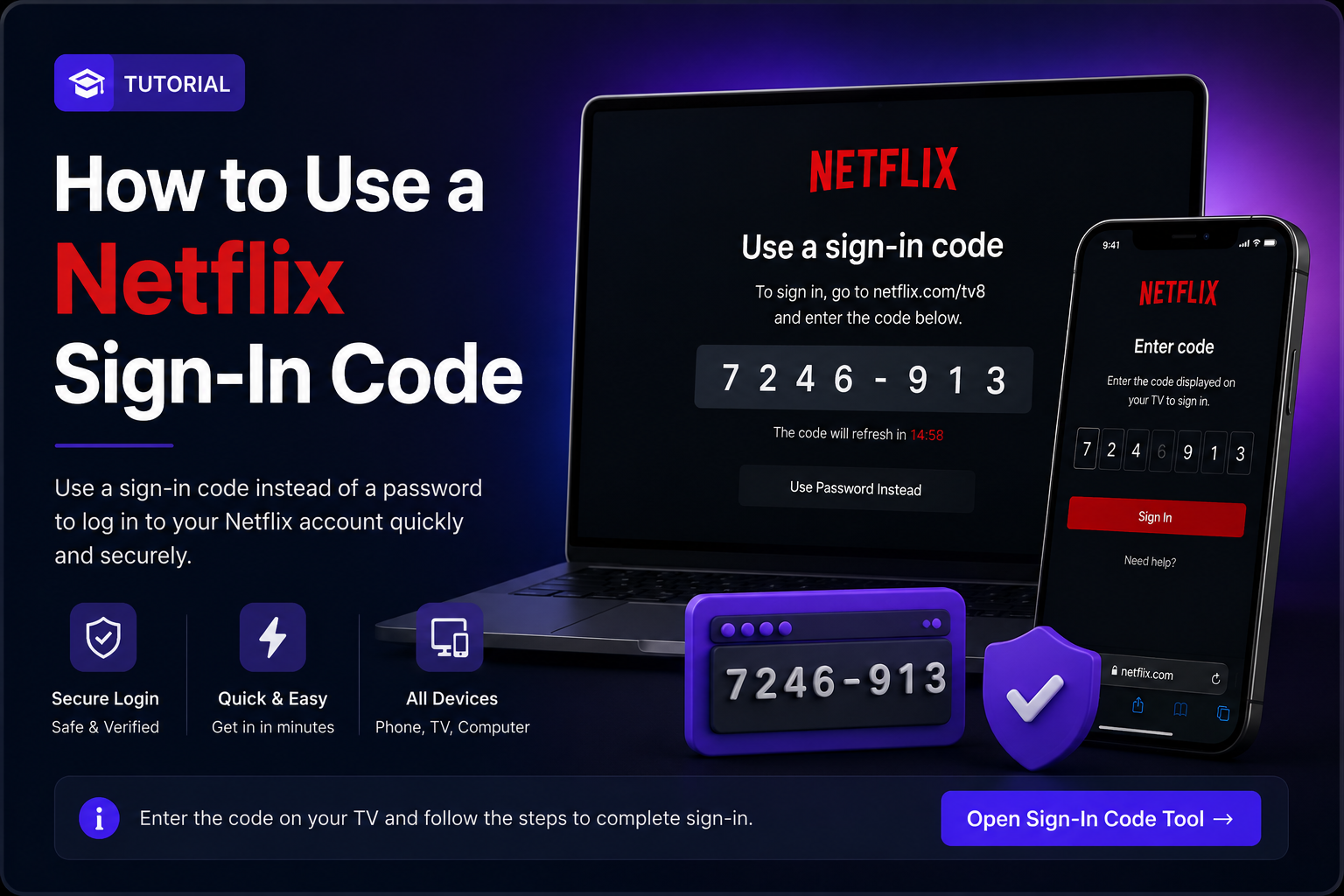
    Sometimes Netflix displays a sign-in code on the screen instead of asking you to type the account email and password directly. When that happens, use the Premiumify Code de connexion tool below.

    How to sign in with the code

    1. Ouvert Netflix on your device.
    2. Choisir the sign-in option until Netflix displays a sign-in code.
    3. Keep the code visible and copy it exactly.
    4. Ouvert the Premiumify Code de connexion tool using the button below.
    5. Enter the code and follow the instructions shown by the tool.
    6. Return to Netflix. The device should continue the sign-in process.

    Netflix Code de connexion Tool
    Use this when Netflix displays a code for signing in.

    🔑 Ouvrir l’outil de code de connexion

    Problèmes courants

    • Code expired: generate a new code on Netflix and try again.
    • Invalid code: check every letter and number before submitting.
    • Netflix does not continue: wait a few seconds, then reopen Netflix on the device.
    • A new code appears: always use the newest code.

    FAQ

    Do I need to enter the Netflix password?

    No. If Netflix is showing a sign-in code, follow the code-based flow shown on the device.

    Can the same code be used twice?

    Use each code only for the sign-in session where Netflix displayed it. If Netflix gives you another code, use the new one.

    What should I do if the code keeps expiring?

    Generate a fresh code and enter it immediately in the Code de connexion tool.