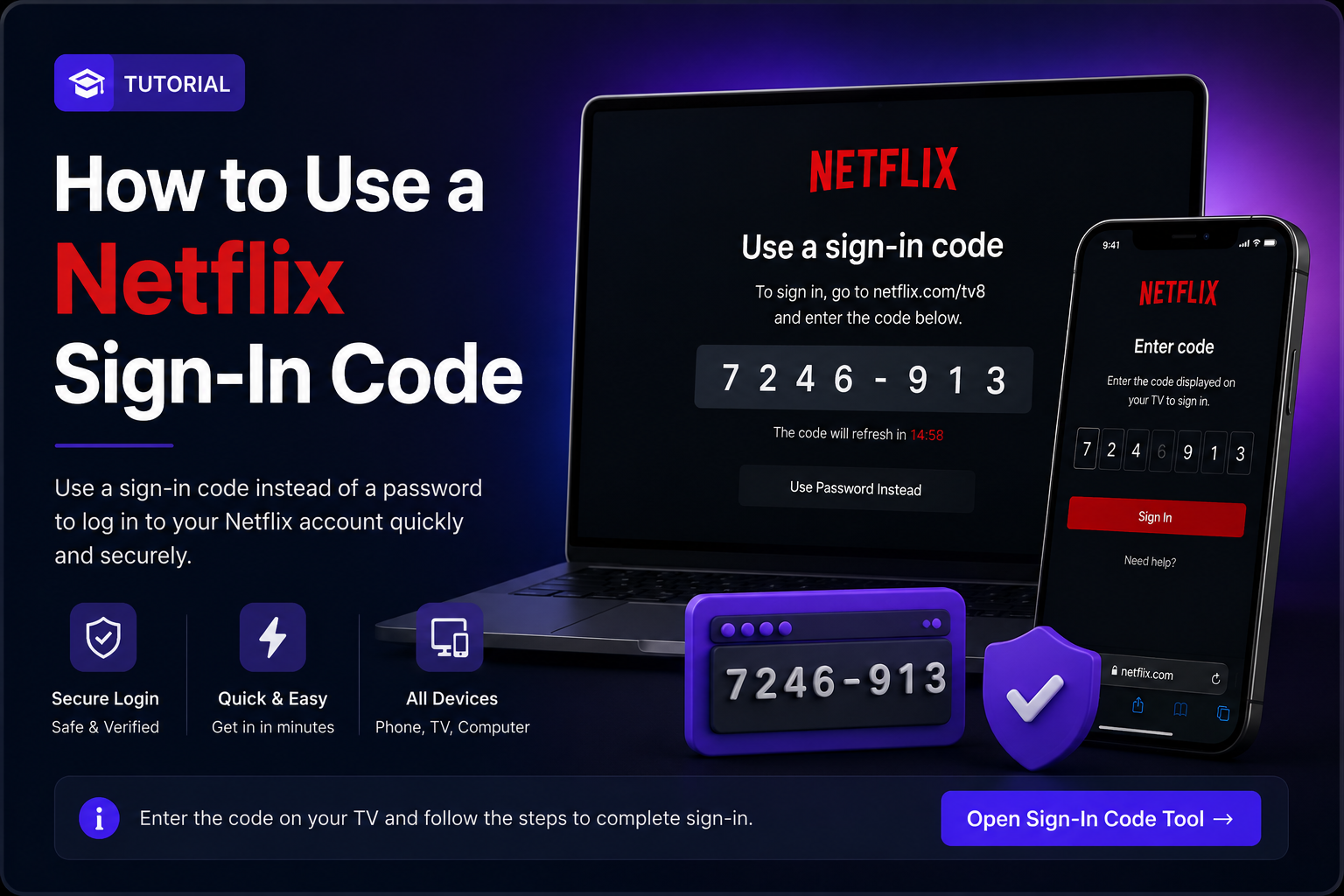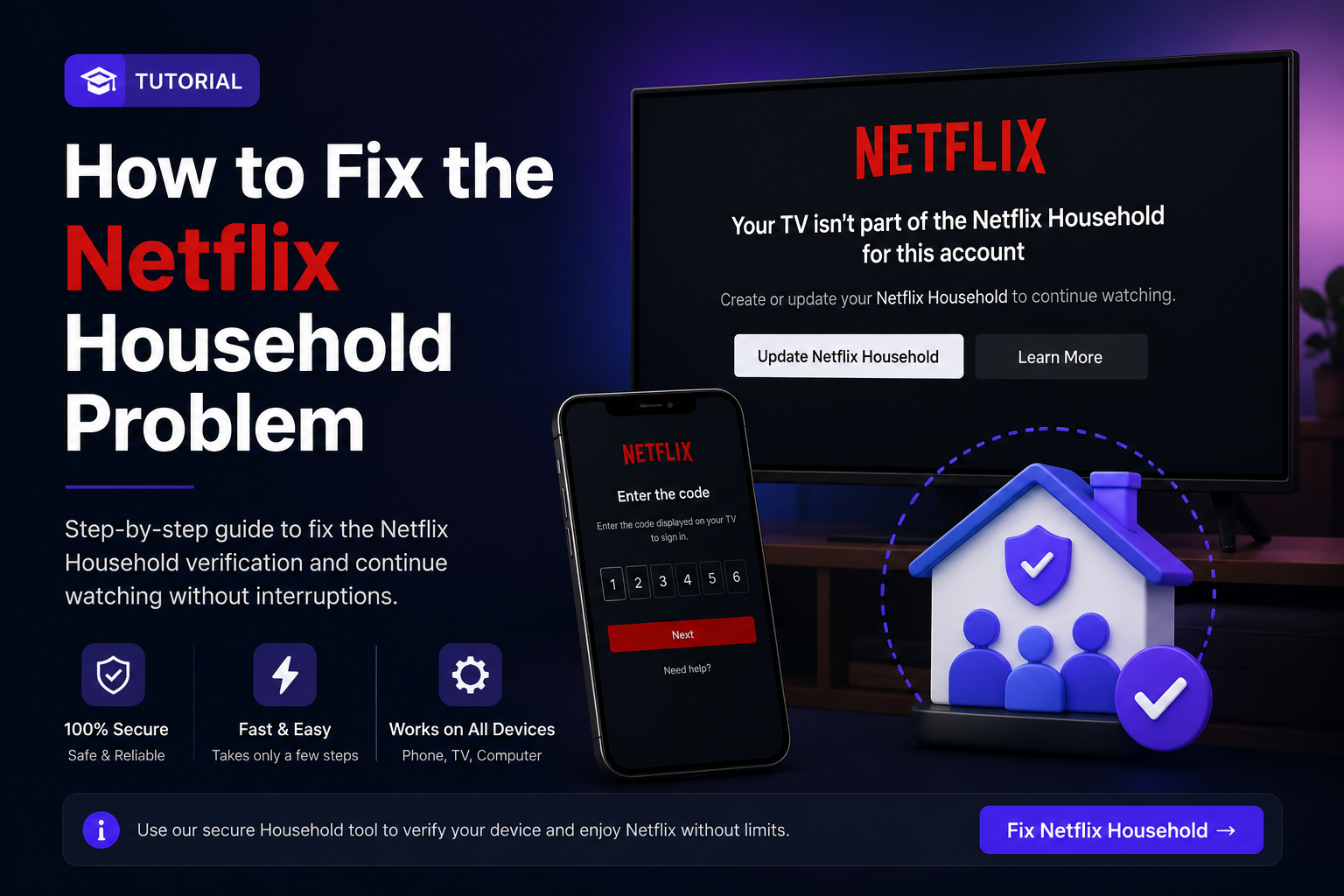
If Netflix shows a message saying that your device is not part of the Netflix Household, you may need to complete a verification step before you can continue watching.
When should you use this tutorial?
- You see a Netflix Household warning on your phone or computer.
- Your TV asks you to confirm or verify the household.
- Netflix gives you a code or verification flow and you need help completing it.
On phone or computer
- Open Netflix and follow the message shown on your screen.
- If Netflix gives you a verification code, copy it carefully.
- Open the Premiumify Household tool using the button below.
- Enter the code exactly as Netflix shows it, then follow the instructions on the tool.
- Return to Netflix and continue the verification process.
Netflix Household Tool
Use this when Netflix asks you to verify the household.
On a TV
- Keep the Netflix Household message open on the TV.
- Follow the QR code, link, or verification instructions shown by Netflix.
- If the flow provides a code, use the Household tool above and complete the steps.
- When verification is complete, reopen or refresh Netflix on the TV.
If it still does not work
- Make sure you entered the code without extra spaces.
- If Netflix generates a new code, use the newest one.
- Do not reuse an expired verification code.
- Close and reopen Netflix after verification.
FAQ
Why does Netflix show a Household message?
Netflix may ask for household verification when a device, network, or location needs to be confirmed.
Can I use an old verification code?
No. If Netflix gives you a new code, always use the latest code shown on the screen.
Does this change my Netflix password?
No. This tutorial is only for completing the household verification flow shown by Netflix.